 share
share Add a file request to your website
Put a file request on your website, so visitors can send you files from it: as the form inside your page, or as a button that opens it. The form runs in a frame served by Share, so your website never sees what people send. Below are the steps for WordPress, Wix, Shopify, Squarespace and Webflow, the code for any other site, and a component for a phone app built with React Native.
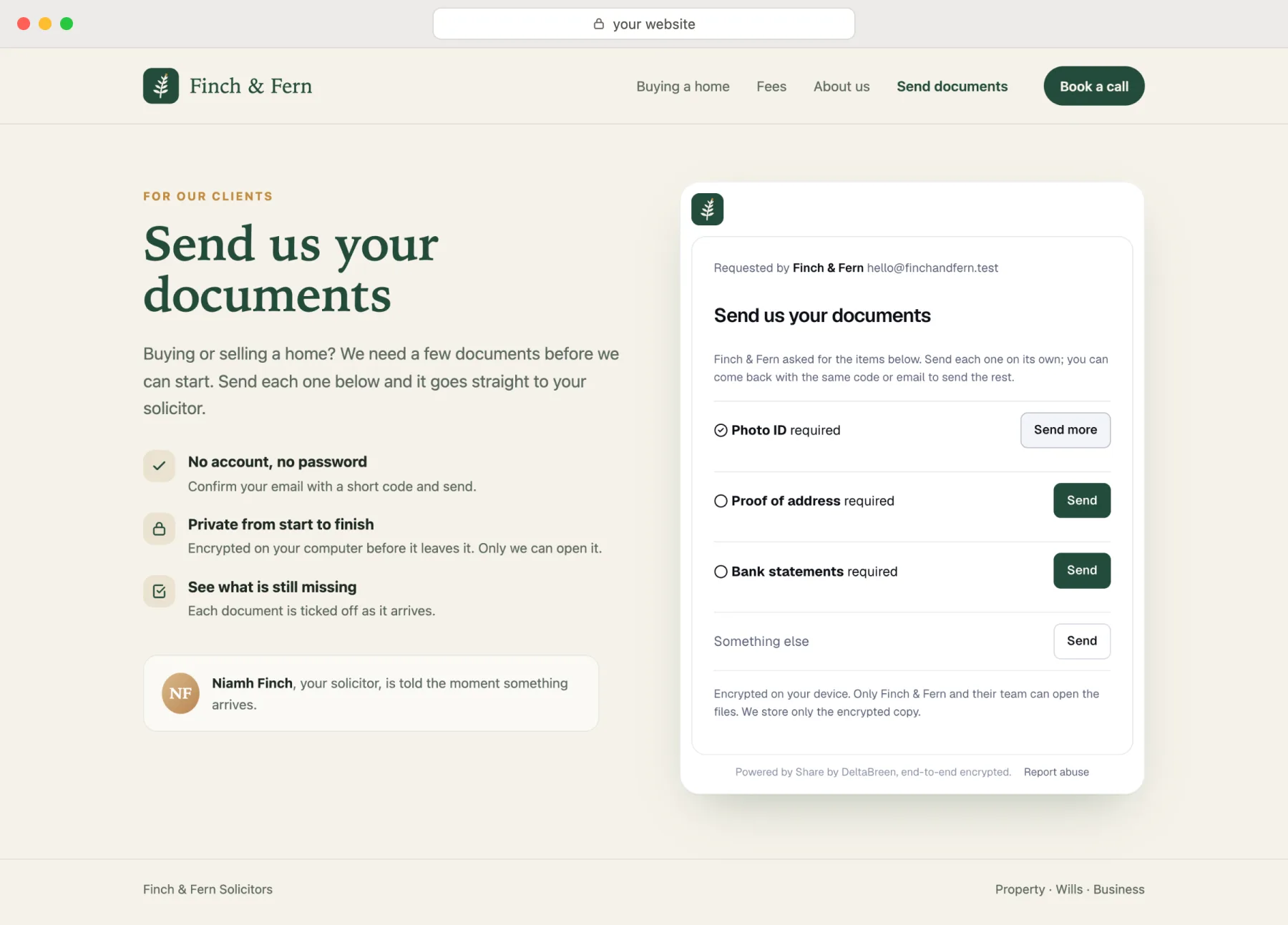
Set it up
- In Share, under Requests, make a file request.
- Open it, press Add to your website and add your site's address, for example
https://www.example.com. - Press Copy code and paste it into your page.
Available on every plan, including Free. What people send lands in your Inbox, and you get an email when something arrives.
The code
Add to your website gives you the code, ready to paste. It is a frame and a short script that keeps the frame as tall as the form:
<iframe id="share-request-Xq3mT7vLp2Rk9sNd" src="https://share.deltabreen.eu/embed/r/Xq3mT7vLp2Rk9sNd#the-end-of-your-link" title="Send us your documents: send files securely" style="width:100%;height:640px;border:0" loading="lazy" referrerpolicy="strict-origin"></iframe>
<script>addEventListener('message',function(e){var f=document.getElementById('share-request-Xq3mT7vLp2Rk9sNd');if(f&&e.source===f.contentWindow&&e.origin==='https://share.deltabreen.eu'&&e.data&&e.data.type==='share:embed-height'){f.style.height=Math.min(Math.max(e.data.height|0,200),4000)+'px'}})</script>
Keep everything after the #: the form needs it.
Or a button: a plain link that opens the request in a new tab. It needs no script and no address listed.
<a href="https://share.deltabreen.eu/r/Xq3mT7vLp2Rk9sNd#the-end-of-your-link" target="_blank" rel="noopener" style="display:inline-block;padding:12px 22px;border-radius:8px;background:#4f46e5;color:#fff;font:600 16px/1.2 system-ui,sans-serif;text-decoration:none">Send us your files</a>
Step by step for your site builder
Each guide starts in Share: make a file request open to anyone with the link, open it and press Add to your website. It shows the same steps, with your request's code or link ready to copy.
WordPress
The form in your page
- In Share, under Add to your website, pick your site builder and add your website's address. As visitors see it, such as https://www.example.com.
- In WordPress, edit the page and add a Custom HTML block.
- Paste the code into it, then press Update.
If the code disappears when you save, your WordPress plan does not allow it. Use a button instead.
A button that opens it
- In Share, open the request and copy its link.
- In WordPress, edit the page and add a Buttons block. Type its words, such as “Send us your files”.
- Press the link icon, paste the request's link and press Enter. Then press Update.
Wix
The form in your page
- In Share, under Add to your website, pick your site builder and add your website's address. Your site's address, such as https://www.example.com. On a free Wix address, add https://yourname.wixsite.com.
- In the Wix Editor, press Add Elements, then Embed Code, then Embed HTML.
- Press Enter Code, choose Website Address and paste the form's address.
- Make the box about 700 pixels tall, then press Publish.
The form shows on your published site, not in the editor.
A button that opens it
- In Share, open the request and copy its link.
- In the Wix Editor, press Add Elements, then Button. Type its words, such as “Send us your files”.
- Press the link icon, choose Web Address, paste the request's link and choose New window. Then press Publish.
Shopify
The form in your page
- In Share, under Add to your website, pick your site builder and add your website's address. Your shop's own domain, such as https://www.example.com, and its myshopify.com address, such as https://example.myshopify.com.
- In Shopify, go to Online Store, then Themes, and press Customize.
- Open the page you want, press Add section and choose Custom Liquid.
- Paste the code into it, then press Save.
The theme editor's preview may not show the form. Open your shop to see it.
A button that opens it
- In Share, open the request and copy its link.
- In Shopify, go to Online Store, then Themes, and press Customize.
- Add a section with a button, such as Rich text, and type the button's words.
- Paste the request's link as the button's link, then press Save.
Squarespace
The form in your page
- In Share, under Add to your website, pick your site builder and add your website's address. Your domain, such as https://www.example.com, and your squarespace.com address if visitors use it.
- Edit the page, press Add Block and choose Code.
- Paste the code into it, then press Save.
If your Squarespace plan does not allow code, use a button instead.
A button that opens it
- In Share, open the request and copy its link.
- Edit the page, press Add Block and choose Button. Type its words.
- Paste the request's link as its link, turn on Open in new tab, then press Save.
Webflow
The form in your page
- In Share, under Add to your website, pick your site builder and add your website's address. Your domain, such as https://www.example.com, and your webflow.io address if visitors use it.
- In the Designer, open Add and drag a Code Embed onto the page.
- Paste the code, press Save & Close, then Publish.
The form shows on your published site, not in the Designer.
A button that opens it
- In Share, open the request and copy its link.
- In the Designer, open Add, drag a Button onto the page and type its words.
- In its settings, paste the request's link as the link and tick Open in new tab. Then Publish.
Somewhere else
The form in your page
- In Share, under Add to your website, pick your site builder and add your website's address. As visitors see it, such as https://www.example.com. With and without www are different websites.
- Paste the code into your page's HTML, where the form should appear.
- Publish the page. The form sizes itself to fit.
For developers: the website guide shows how to size the form without an inline script.
A button that opens it
- In Share, open the request and copy its link.
- Paste the button's code into your page's HTML, or link any button or text to the request's link.
- Publish the page.
Options
?theme=lightor?theme=dark, added before the#, sets the look. Without it the form follows the visitor's device.- The frame starts 640 pixels tall, then the script fits it to the form, between 200 and 4000 pixels.
Your own script
If your site blocks inline scripts or uses a framework, leave the script out and listen for the height yourself:
const frame = document.getElementById('share-request-Xq3mT7vLp2Rk9sNd')
addEventListener('message', (e) => {
  if (e.source !== frame.contentWindow || e.origin !== 'https://share.deltabreen.eu') return
  if (e.data && e.data.type === 'share:embed-height') {
    frame.style.height = Math.min(Math.max(e.data.height | 0, 200), 4000) + 'px'
  }
})
The frame posts { type: 'share:embed-ready' } when it loads and { type: 'share:embed-height', height: 512 } when its height changes. Nothing else.
If the form does not show
- List your site's address exactly as visitors see it:
https://example.comandhttps://www.example.comare different websites. - If your site sends a Content-Security-Policy, allow your Share address in
frame-src. http://works only onlocalhost.- Wix, Shopify, Squarespace and Webflow may not show the form in their editor's preview. Open the published page to check.
In a phone app
Building a phone app with React Native? Show the same form on a screen of your app with react-native-webview. Your clients confirm their email and send files without leaving the app, and each file is encrypted on the phone before it leaves it.
Add the library: npx expo install react-native-webview with Expo, or npm install react-native-webview and then npx pod-install without it.
Then add this component. It turns your request's link into the form's own address, and opens the form's links, like Report abuse, in the phone's browser:
import { Linking } from 'react-native'
import { WebView, type WebViewProps } from 'react-native-webview'

type Props = { link: string; theme?: 'light' | 'dark' }

// Links in the form, like Report abuse, open in the phone's browser.
const openOutside: WebViewProps['onOpenWindow'] = (e) =>
  Linking.openURL(e.nativeEvent.targetUrl)

// Pass your file request's whole link, with the part after the #.
export function FileRequest({ link, theme = 'light' }: Props) {
  const form = link.replace(/\/r\/([\w-]{16})/, `/embed/r/$1?theme=${theme}`)
  return <WebView source={{ uri: form }} style={{ flex: 1 }} onOpenWindow={openOutside} />
}
Give it your request's whole link, with the part after the #, and a screen of its own: the form fills the space it is given and scrolls inside it.
<FileRequest link="https://share.deltabreen.eu/r/Xq3mT7vLp2Rk9sNd#the-end-of-your-link" />
Nothing goes under Websites allowed to show it: the app opens the form as a page of its own, not inside a website.
On iPhone, people can pick a photo or a file, or take a photo. react-native-webview asks for these two lines in Info.plist; with Expo they go in app.json. Android needs nothing more.
"ios": {
  "infoPlist": {
    "NSCameraUsageDescription": "Take a photo of a document to send it.",
    "NSPhotoLibraryUsageDescription": "Choose a photo of a document to send it."
  }
}
Keep the web view's defaults: JavaScript and storage on, cookies kept and its own user agent. The bot check on a request open to anyone needs them.
Only you and your team can open what is sent. An app can read a web view it shows, though, so show the form in your own app. A browser sheet keeps the page apart from the app.
Or open the request in a browser sheet that slides up over your app, with expo-web-browser (npx expo install expo-web-browser). There is nothing else to set up, and the page works just as it does in the phone's browser. Without Expo, Linking.openURL(link) opens it in the phone's browser instead.
import { Button } from 'react-native'
import * as WebBrowser from 'expo-web-browser'

<Button title="Send us your files" onPress={() => WebBrowser.openBrowserAsync(link)} />